


Make Your Vocabulary Buttons Work Smarter For You

These button features offer added efficiency, power, and fun on your AAC device and in your environment. A robust AAC system offers a variety of options that transform static buttons into dynamic tools for communication, learning, and independence.
Tailor your device even further with button navigations and actions to meet your unique needs. Here are just a few things you can tell a button to do.
- For head trackers, activate the calibration tool directly from your vocabulary
- Control your device’s volume including volume up, volume down, and mute
- Speak the text in your message window
- Navigate to a specific page or category within your vocabulary
A button action can also let you have some fun. A List-O-Matic button action allows you to play a list of items in the order you specify or in a random order with the press of a button in your vocabulary. Each time you select the button, the next item will play. Use List-O-Matic to tell a joke, play bingo, roll dice, etc.
Empower® Software for Accent® device just released two new button actions with version 1.30. Keep reading to learn more about new and popular button navigations and actions and how to add them to your vocabulary.
What is a button navigation or action?
Let’s get technical. A button navigation or action is a programmed response that occurs when you select a button. They determine what a button does—such as speaking a message or opening an application. Some are pre-programmed into your vocabulary; others are added to customize your vocabulary to your preferences. You can add one or more navigations or actions to a button that will be initiated when you select the button.
Where are button navigations and actions found in the software?
Explore all the button action possibilities by going to the Empower Toolbox.
- Select Menu, then Editor
- Select Edit and choose a button on your vocabulary to modify
- Select Navigation or Actions from the list on the left
- If you chose Actions, then select Add Action at the top and all button action categories appear on your screen including Message Functions, Audio and Fun Things, and more
New button actions for copy and paste
When you update your Accent device to version 1.30, you can try out two new button actions:
- Copy Message Window – copies text in your message window to the Windows® Clipboard; it’s similar to the Ctrl + C command on a computer
- Paste Message Window – pastes the text that you’ve copied to the location of your choice; it’s similar to the Ctrl + V command on a computer
If you like to craft longer messages or move text that you’ve written in between applications, these buttons are for you! You might choose to place these button actions on two blank buttons located next to each other.
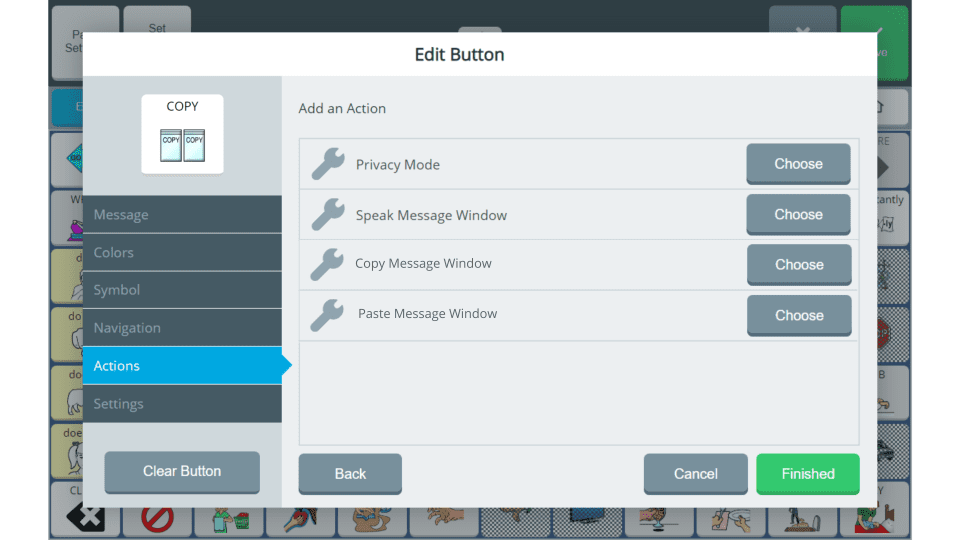
Here’s how to add copy and paste to buttons in your vocabulary:
- Select Menu, then Editor
- Select Edit and choose a button on your vocabulary to modify
- Select Actions from the list on the left, then select Add Action at the top
- Select Message Functions on the right
- Choose Copy Message Window (or Paste Message Window)
- Select Finished and then select Save and the button action is added
You might also choose to add the word “Copy” to the button, change the button colour so it’s easier to find, or add a symbol. Customise as you like!
Popular button navigations and actions
Your Empower Software is designed for maximum flexibility and efficiency. Explore these additional button navigations and actions to find what works best for you.
- Go To Vocabulary – switch between two vocabularies for bilingual communication
- Launch External App – open a linked application or website directly from your vocabulary
- Privacy Mode – obscure your message window with dots
- Clear Message Window – clear the current message window to start a new communication
- Delete Last Word/Character – remove the last word or character from the message window
- Play Audio File – play a recorded or uploaded audio file for music, sound effects, or instructions
Empower Software is always evolving to give you more of what you want to communicate at your highest potential. Update to version 1.30 to get the best AAC for your Accent!