System Lock Override Toolbox Restrictions in NuVoice™


Did you know that you can lock the Toolbox to prevent changes being made accidentally?

Learn below how how to restrict access to the Toolbox using a USB or Password lock, and how to disable again using a password, or override using a USB stick without having to disable restrictions.

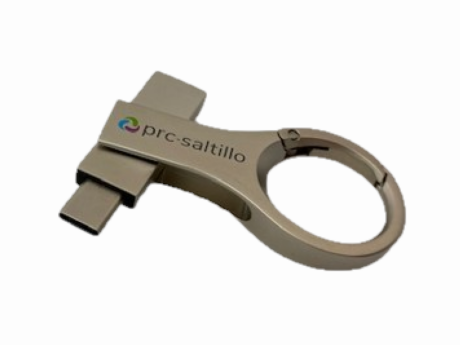
If you need to use a USB stick to override Toolbox Restrictions, tap the button to download the System Lock Override (SLO) file.
Please note, this is a zipped folder which contains an empty .txt file.  Simply unzip the folder and copy the file to the root of a USB stick to use. DO NOT rename the file or place it in any other folders.

IMPORTANT: If you lose or misplace your USB stick, and the Toolbox is locked with USB Lock, you will need to manually create another USB override by following the above instructions.

Don’t forget to check out our YouTube tutorial!

Setting Up Toolbox Restrictions
System Lock Override

Setting Up Toolbox Restrictions

If you find that your vocabulary or settings are being changed accidentally, you can turn on Toolbox Restrictions.

  • Go to Toolbox > Advanced Settings > System Lock Settings and turn Toolbox Restrictions ON.
  • Select USB Lock, then press “Create USB Lock Override” button.
  • Plug a USB stick into one of the USB ports on the side of your device.
  • A message will appear – “USB Lock Override successfully created on Removeable Drive *:” – Press OK. (* indicates filename of Removeable Drive)
  • You can now keep USB Lock selected, or choose Password Lock and set a password.
  • Select OK 3 times to return to your vocabulary, then unplug your USB stick to restrict access to the Toolbox.

IMPORTANT NOTE! When you first set up Toolbox Restrictions you will need to set up a USB override stick.

Override Toolbox Restrictions with a USB Stick
System Lock Override

Override Toolbox Restrictions with a USB Stick

When Toolbox Restrictions are turned on, either by USB Lock or Password Lock, you can override this by using a USB stick.  Make sure you have downloaded the System Lock Override file to your USB stick, then plug this into one of the USB ports on the side of your Accent device.

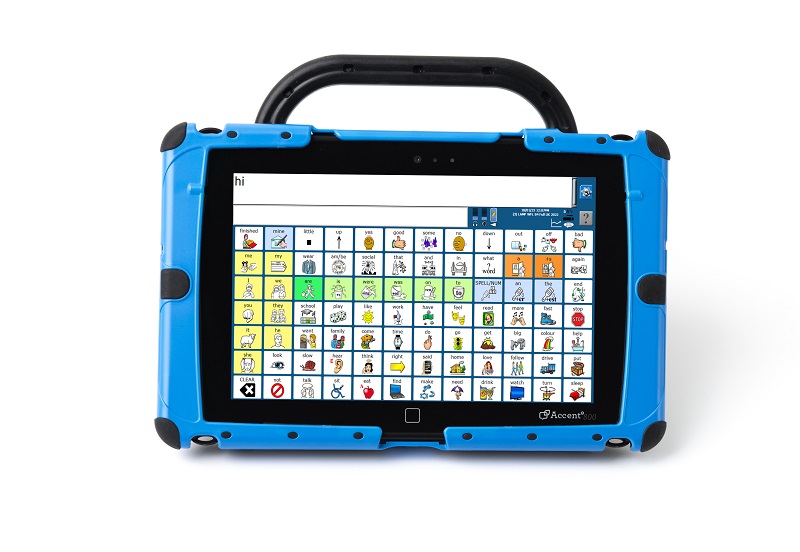
Whilst the USB stick is plugged in you can access the Toolbox as normal (either via the greyed-out Tools button in the top right corner, or by pressing the Home button at the bottom of the device, just under the main screen). This will allow you to carry out any editing or changes that you wish to make in the vocabulary.

When you have finished, exit the Toolbox and remove the USB stick from the Accent device. This will restrict access to the Toolbox again.

Disable Toolbox Restrictions using a Password
System Lock Override

Disable Toolbox Restrictions using a Password

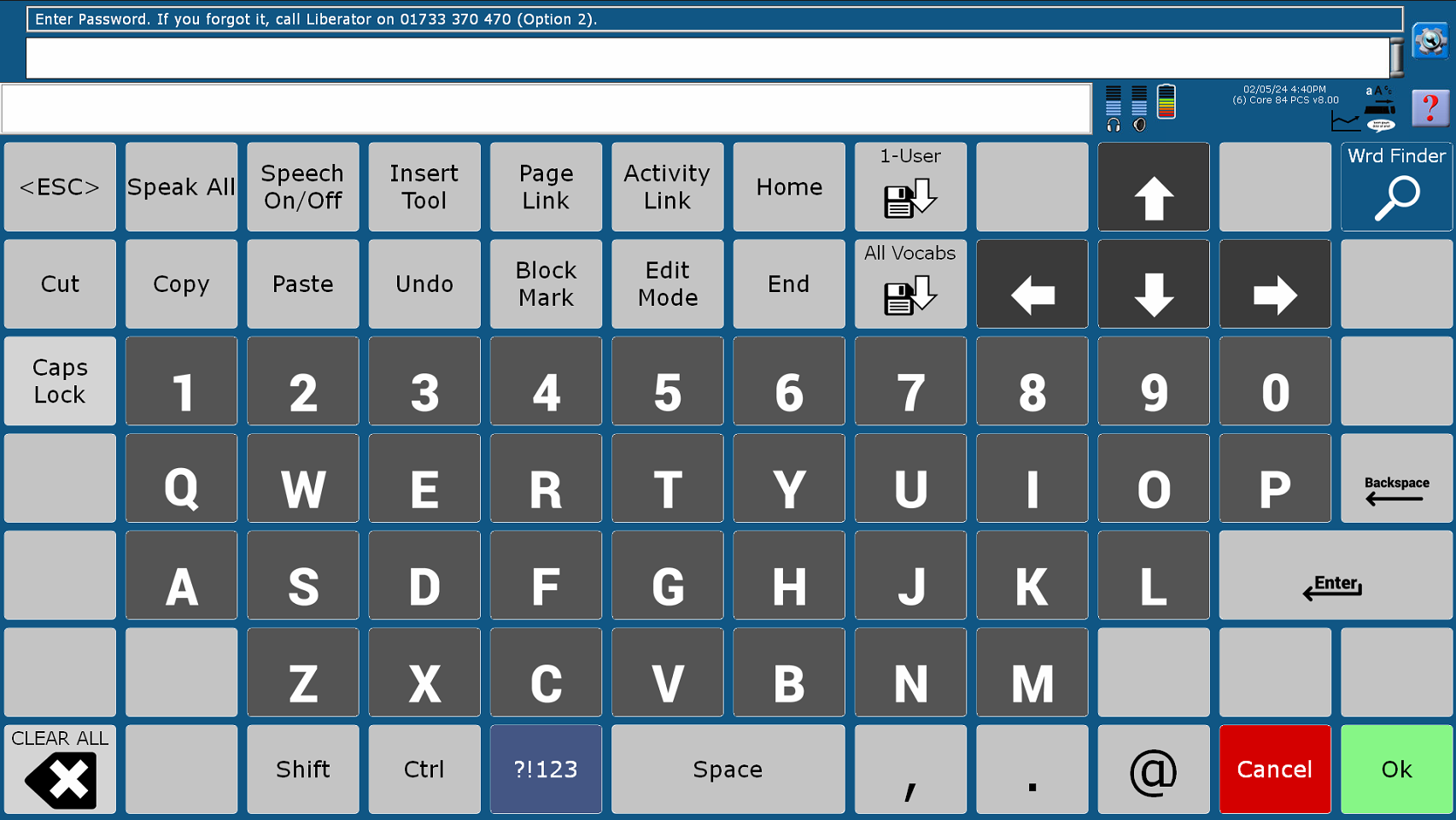
When Toolbox Restrictions is turned ON with Password Lock you can still use your vocabulary to speak, but the use of the Toolbox is severely limited. Only certain menus in the Toolbox will work. When you select the Tools button on your device, you will see the screen to the right.

Enter your password and press OK – you will now see the left Off-Screen Keys pop up where you can access the Toolbox. In order to use the full functionality of the Toolbox you will need to disable Toolbox Restrictions by selecting: Toolbox > Advanced Settings > System Lock Settings.  Turn Toolbox Restrictions OFF and select OK.

You can now make any changes or edits to the vocabulary that you need. When you have finished, turn Toolbox Restrictions back ON to limit access to the Toolbox again.

Alternatively, if you have forgotten your password (or don’t know the password) you can use a USB stick to override the Toolbox Restrictions. Simply follow the instructions above for Override Toolbox Restrictions with a USB Stick – you do not need to turn off Toolbox Restrictions to use the USB override.

Additional Restrictions

You can also restrict which buttons are enabled from within the System Lock Settings menu:

  • Hardware Volume Keys (volume buttons on the side of the device)
    Default: ENABLE
  • Tools Key (Home button at the bottom of the device)
    Default USB: DISABLE (Greyed-out – unable to change)
    Default Password: ENABLE
  • On-Screen Tools Key (blue button with Cog & Spanner)
    Default USB: DISABLE (Greyed-out – unable to change)
    Default Password: ENABLE
  • Help Button (? Symbol under On-Screen Tools Key)
    Default: ENABLE
  • All other Off-Screen Tools Buttons
    Default: DISABLE