


Software updates give you the best communication experience on your NovaChat®. The newest update, Chat Software 2025.2, includes a brand-new vocabulary file and default features to make communication easier for new communicators. Our software versioning reflects a change starting with this release to help track the timing/history of new features. 2025.2 represents the year and the version number during that year.
New! WordPower48 Basic Now Available in English
Introducing a brand-new WordPower® file! Designed with early language learners in mind, WordPower48 Basic provides ample picture support and novel structures to facilitate expressive language development.
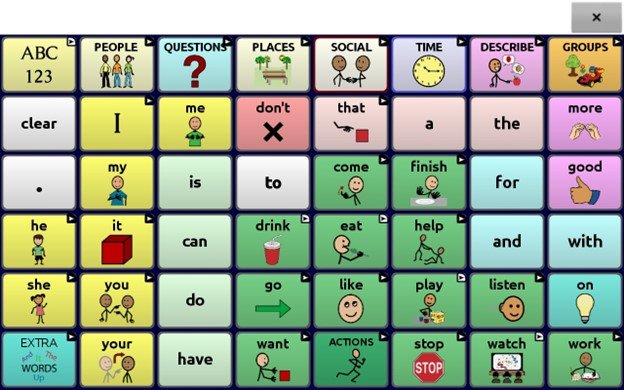
- Core vocabulary is embedded within the category and activity pages, allowing easy generation of language from the main core page as well as within topic-based pages
- Core words remain consistent in terms of placement and access, providing a natural bridge between core and fringe words
WordPower48 Basic is complementary to WordPower48 Español Basico. WP48 Español Basico received some updates to pair these two files together in support of your bilingual communicator. Try out the new “cheat sheet” in WP48 Español Basico. This one-page features voice output and buttons labeled in English and Spanish.
Additional WordPower Updates
- With this update, WordPower20 became a legacy file; your customised WP20 file will continue to be available to you; corresponding Keyguards and TouchGuides will be available as a cutom order
- WordPower25 Touch & Scan received a simplified name change to WordPower25
Randomising SymbolStix Skin Tones
In response to your feedback, the skin tones across the buttons on the DESCRIBE – FEELINGS pages in MultiChat 15 Student, Adolescent, and Adult vocabulary files with SymbolStix symbols, have been randomised.
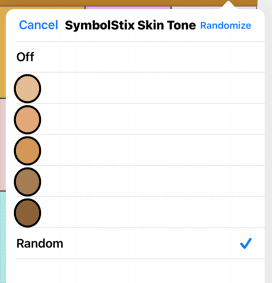
The randomising feature can be updated at any time in any vocabulary using SymbolStix symbols in your device. You may also select the same skin tone for all your SymbolStix symbols. Explore your options with the following steps:
- Select Menu > Edit Mode.
- Select Menu > Vocabulary Settings > SymbolStix Settings. To use a single skin tone, select Skin Tone and choose a skin color. To use random skin tones, enable Use Random Skin Tones, then select Randomise Skin Tones.
- Press the back button until you exit back to the vocabulary.
This feature works in ChatEditor™ too!